

01Role editor
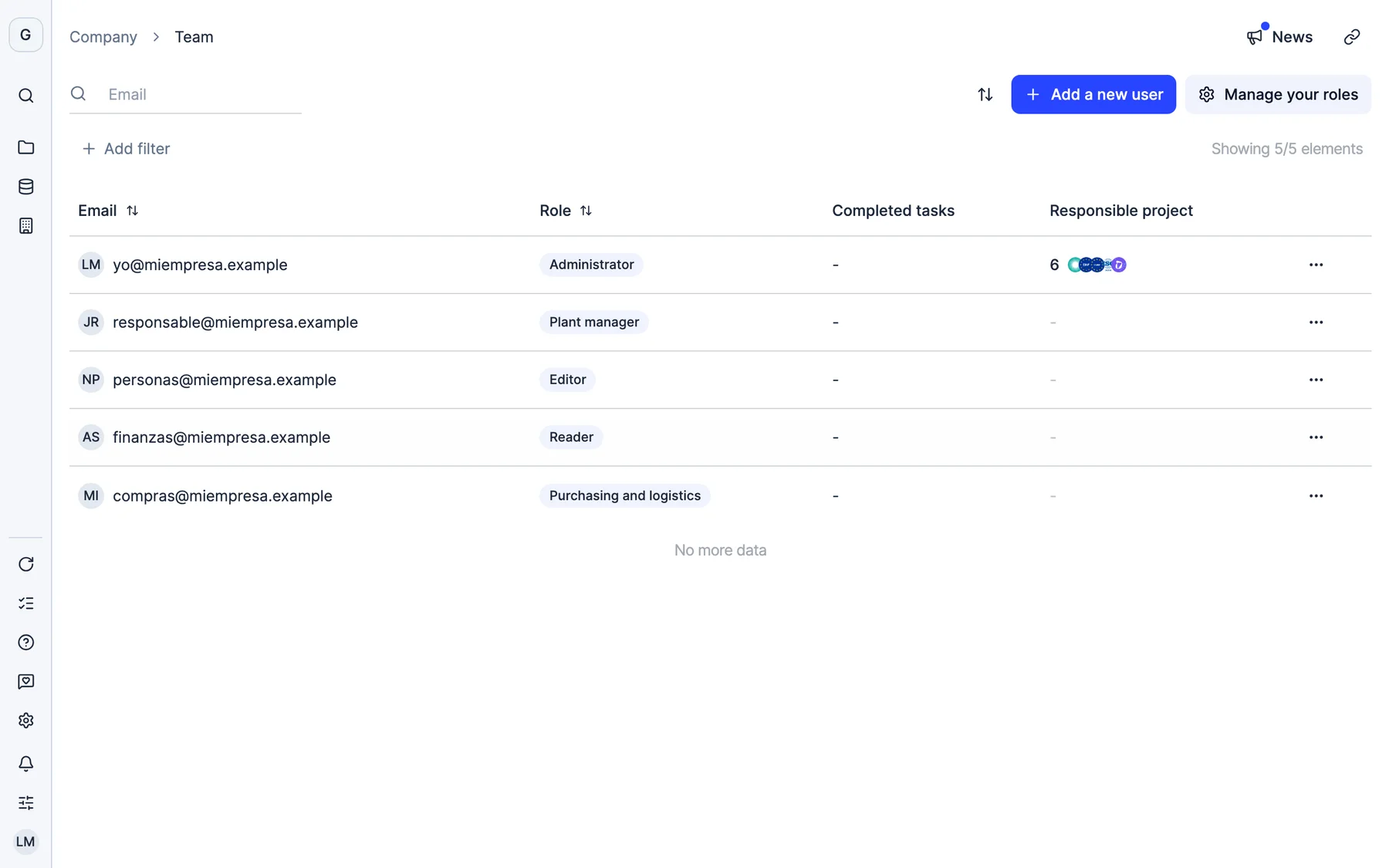
By section, by permission and by site
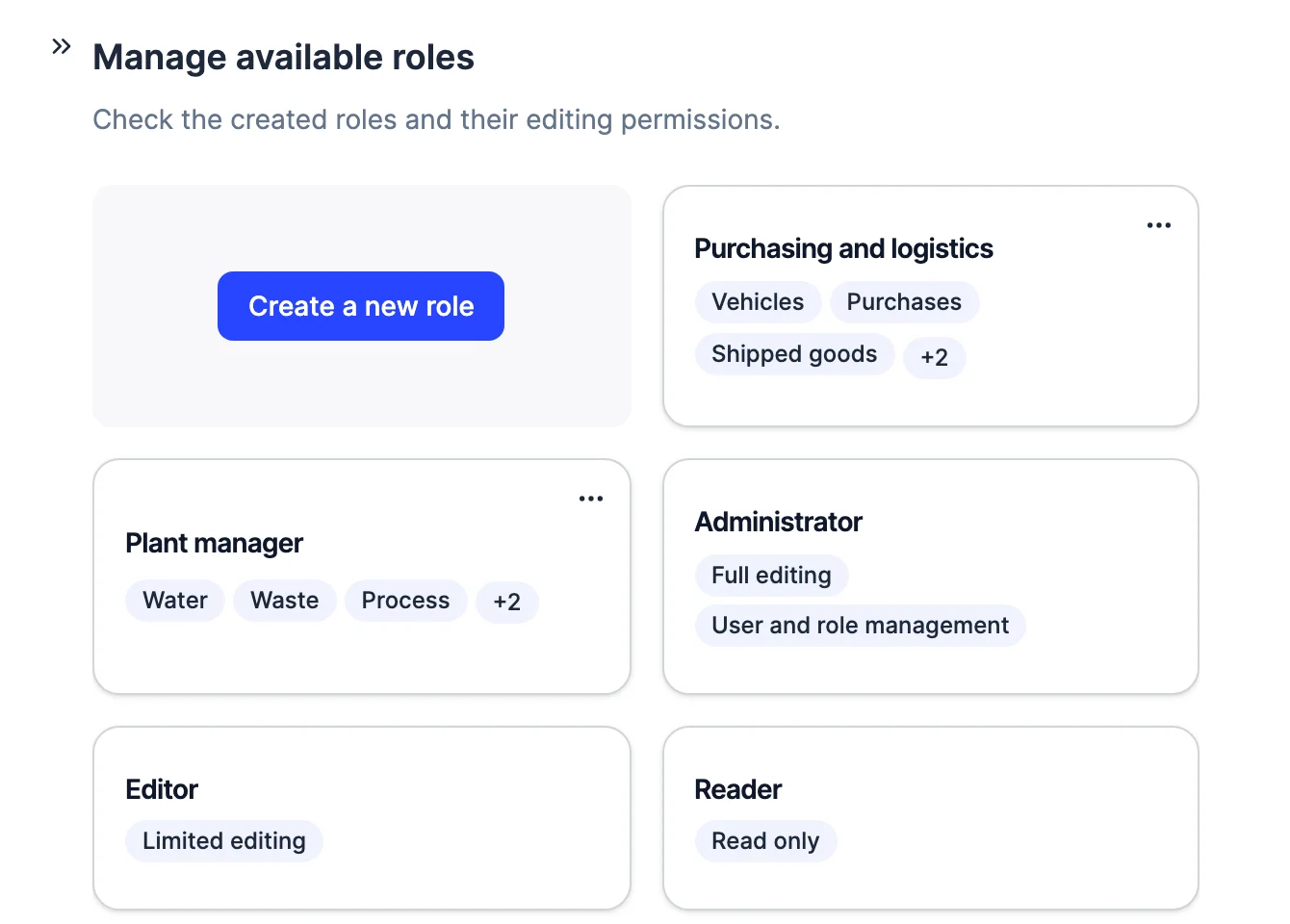
Each section has its own “No access” or “Edit”, and below it each permission separately. At the end, “Investees & facilities” limits the role to the subsidiaries or facilities you select.
The plant manager uploads their consumption, purchasing uploads its invoices and management looks without touching anything. With predefined or custom roles, by category and by subsidiary or facility.
More than 2,000 European companies trust Dcycle






Each role sets which sections a person can edit and, if needed, in which subsidiaries or facilities. What they can’t edit, they can see but not change.
Each section has its own “No access” or “Edit”, and below it each permission separately. At the end, “Investees & facilities” limits the role to the subsidiaries or facilities you select.
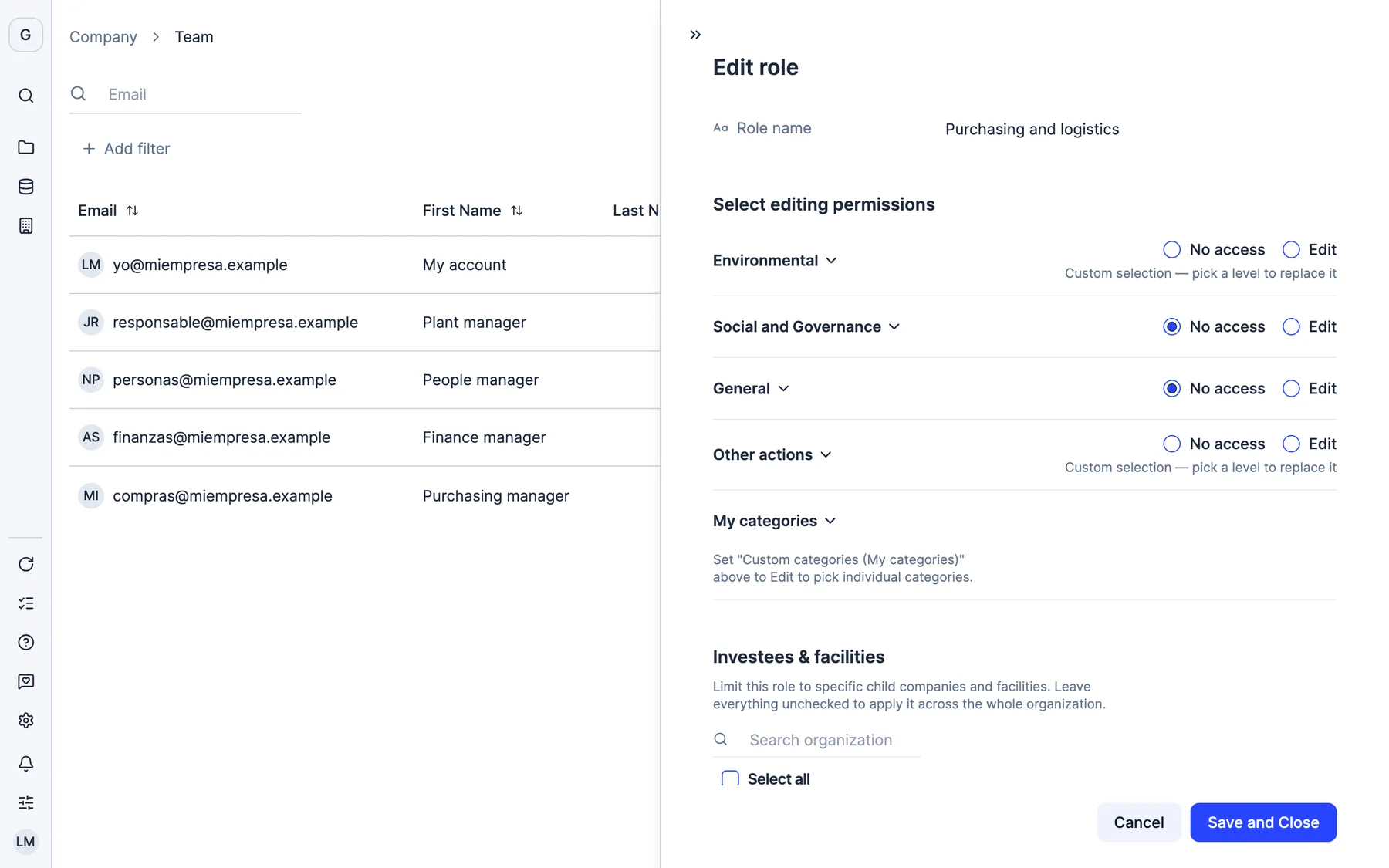
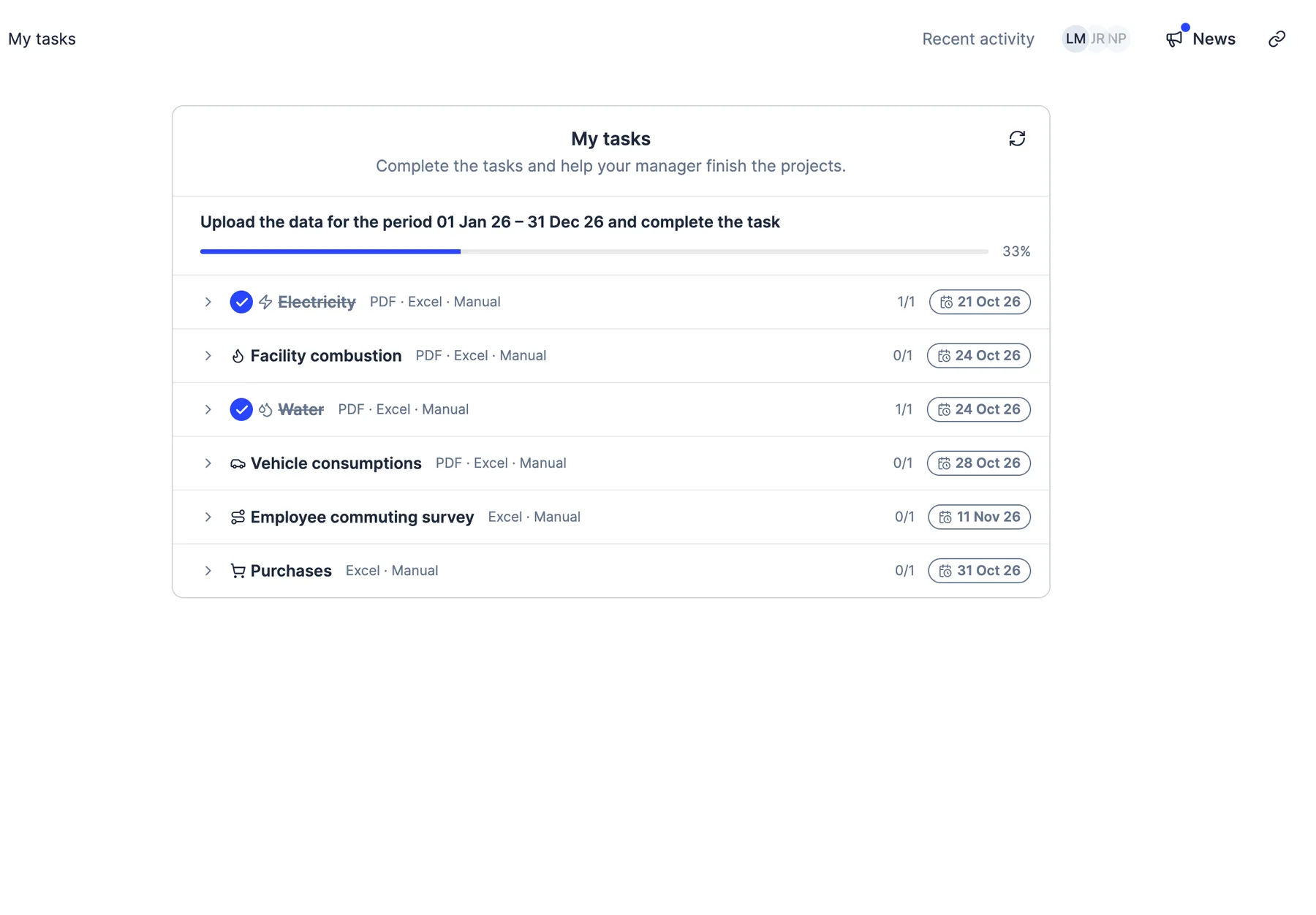
Name who looks after each data point and their tasks are assigned to them automatically in every project. They can upload the data from the task itself, without getting lost in the rest of the platform.
The Activity page logs every action by the team: who, when and in which section, with a link to go there.
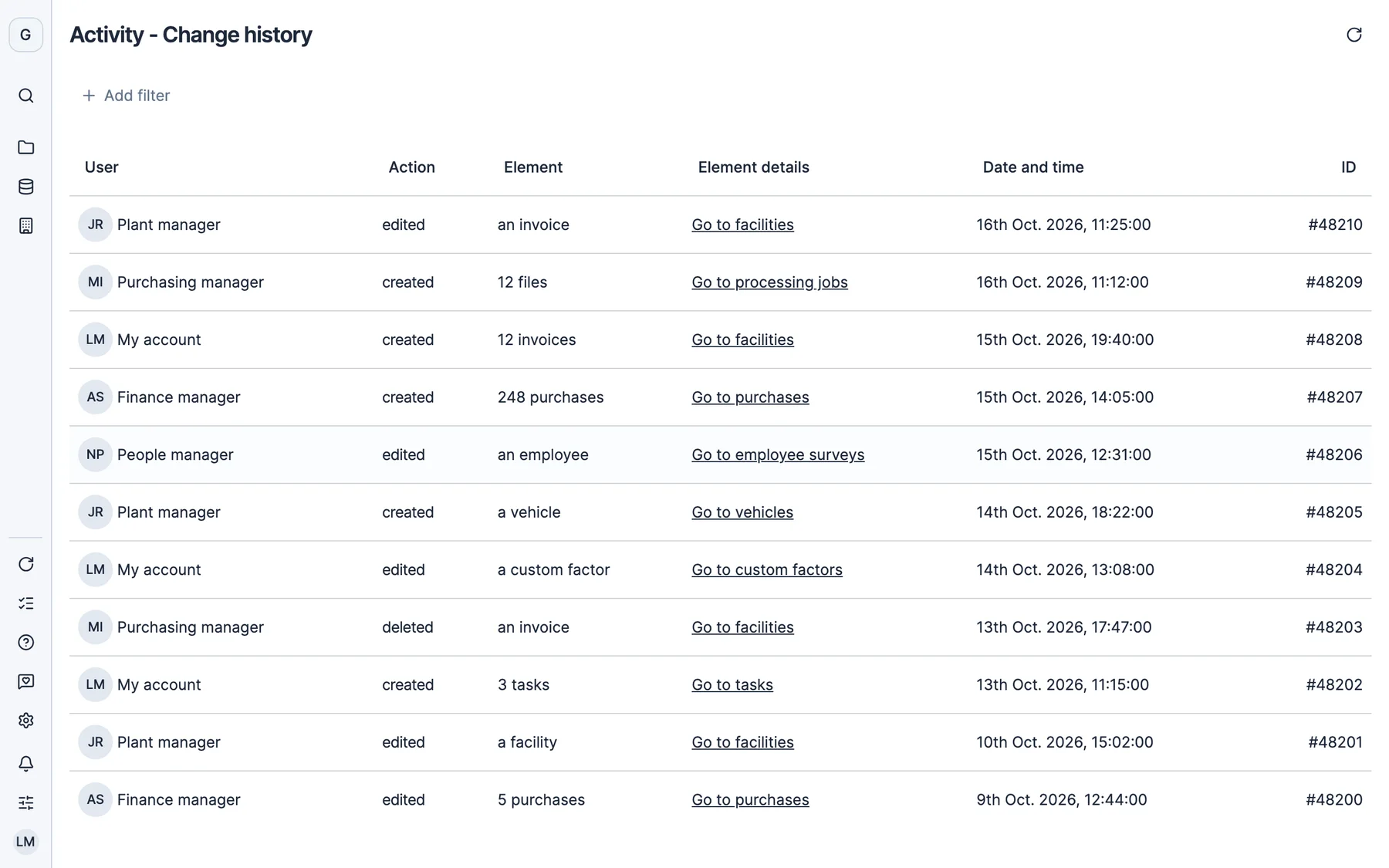
Real Dcycle screens with a sample company.
Administrator, with full editing and user and role management; Editor, who can edit everything except user management; and Reader, read only, designed for management or auditors, for example. You can also create your own roles.
Yes. You give it a name and choose, section by section (Environmental, Social and governance, General and Other actions), whether it can edit or not. Within each section you can fine-tune permission by permission, for example only Electricity and Combustion.
Yes. In “Investees & facilities” you select the subsidiaries or facilities the role applies to. If you select nothing, it applies to the whole organization.
They see it in read-only mode, without being able to change it. The Reader role works this way across the whole platform.
Only administrators, or whoever owns the role. If you change a shared role from a person’s profile, Dcycle warns you that the change applies to everyone who has that role.
Yes. The Activity page logs every action by the team with who did it, when and in which section.
Thirty minutes with our team. We show you how your data would come in, and what you would get out.
See Dcycle in actionWhat your session looks like



 With someone from the team who then supports you